Calendar + Insights FAQ

The app has two connected features: Calendar for research/insights, and Block Grabber for active searching. Calendar helps you learn patterns over time, and Block Grabber helps you act on those patterns.

Step 1 Start Service in the app.
Step 2 Open Amazon Flex and keep it in front.
Step 3 Tap the Play button on the overlay to begin tracking.
Play button (from app overlay icon)

1) Calendar + Insights

This is your research engine. The app tracks when offers appear, where they appear, and how much they pay so you can discover the best search windows and higher-paying trends.

Example: if you want a block around 10:00 AM every day, your tracked history can reveal when those offers usually pop first.

Free Feature
2) Block Grabber

This is the action engine. It works with flexible filters and uses the same offer stream, while still contributing useful logs for your history.

It can auto-pause on blocking screens (like CAPTCHA prompts). It detects them, but you must solve CAPTCHA yourself before resuming.

Premium Feature

Frequently Asked Questions

Separated by feature so it is easier to scan. Tap any question to expand.

Calendar

Free Feature
Is Calendar separate from Block Grabber?

Yes. They are separate features, but they work together. Calendar builds your history, and Block Grabber handles live searching.

Use Calendar to learn the pattern, then use Block Grabber to act on it faster.

How does the Calendar page work?

Start service, open Amazon Flex, then tap Play on the overlay. Offers seen while active are saved to your Calendar history.

Overlay look on top of Amazon Flex

Overlay look on top of Amazon Flex.

No Play + no active service + no Flex foreground = no new tracked offers.

Keep it running daily and your history turns into usable timing insights automatically.

How does the Day page work?

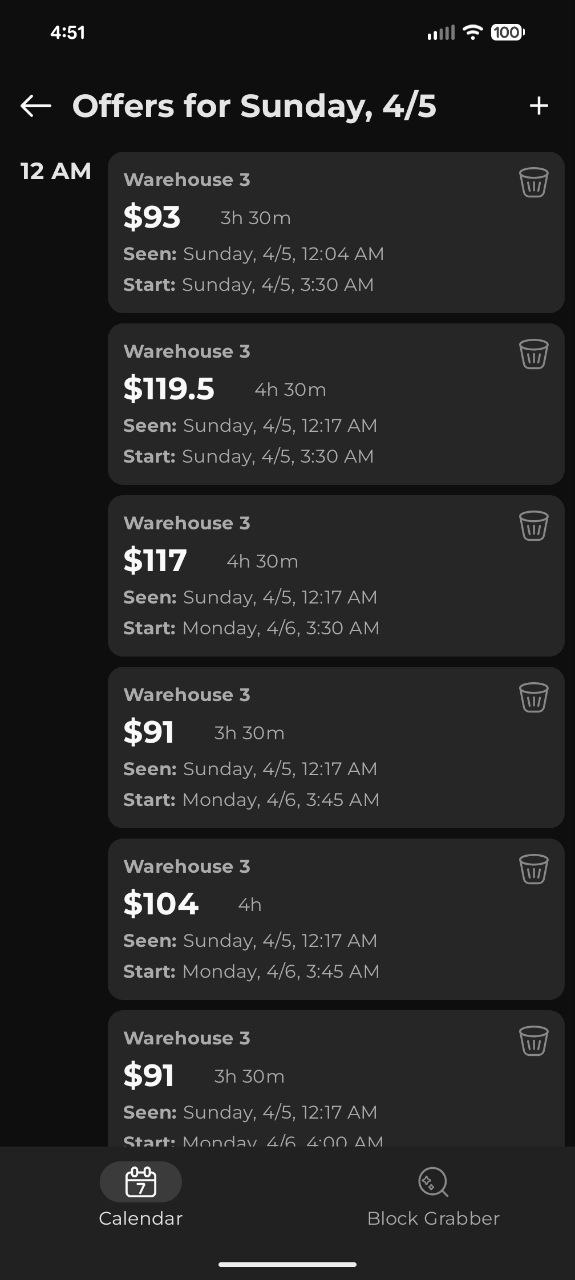
Tap any day with offers to open Day view. This page shows the actual block cards and their times.

  • Left side shows hour labels.
  • Each block card shows station, pay, duration, Seen time, and Start time.
  • Manual entries can be deleted from this page.
Day screenshot with actual blocks and times

Day screenshot: actual blocks listed with their times.

This is where your raw tracked data becomes practical: exact times, pay, and station details in one place.

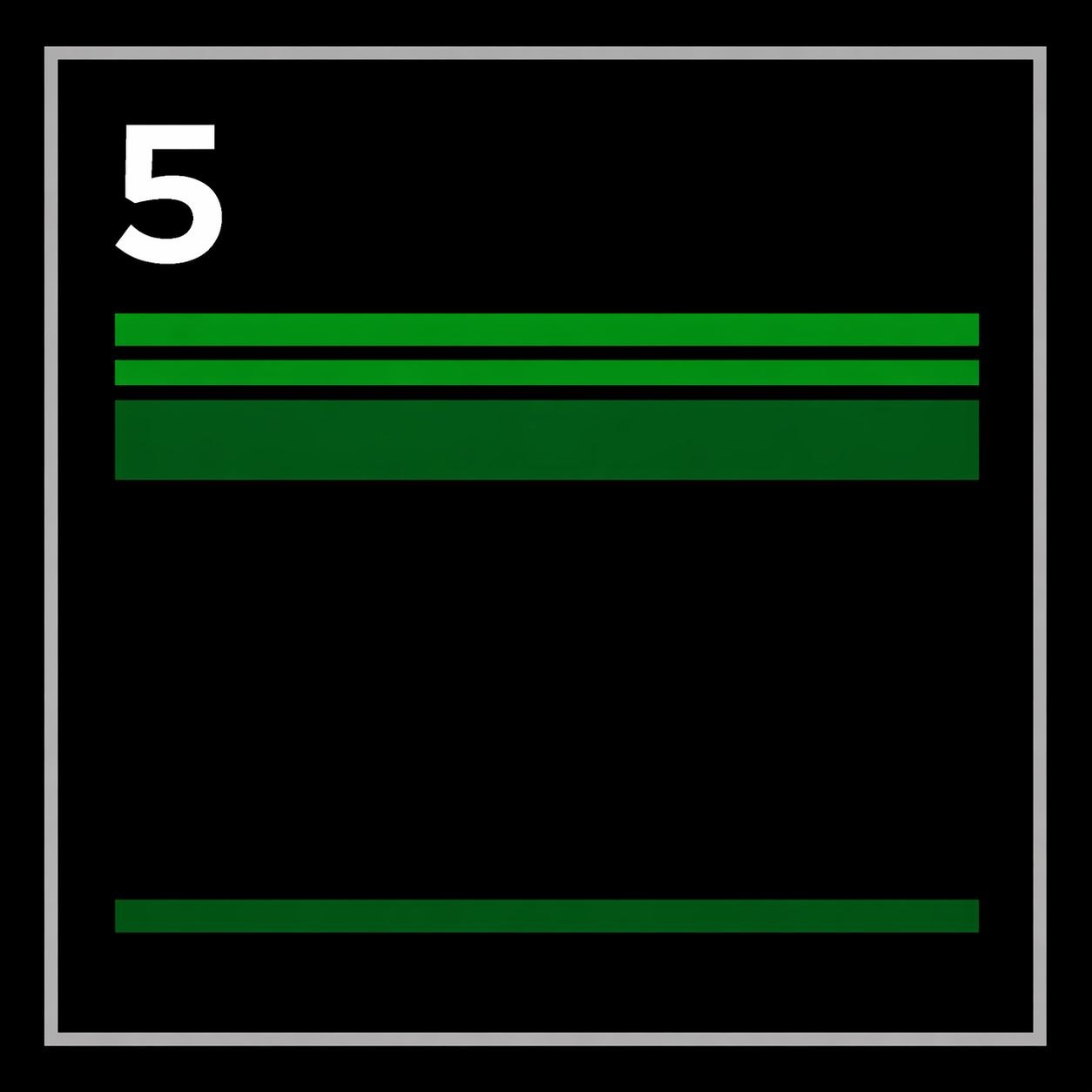
How do the green dashes on Calendar days work?

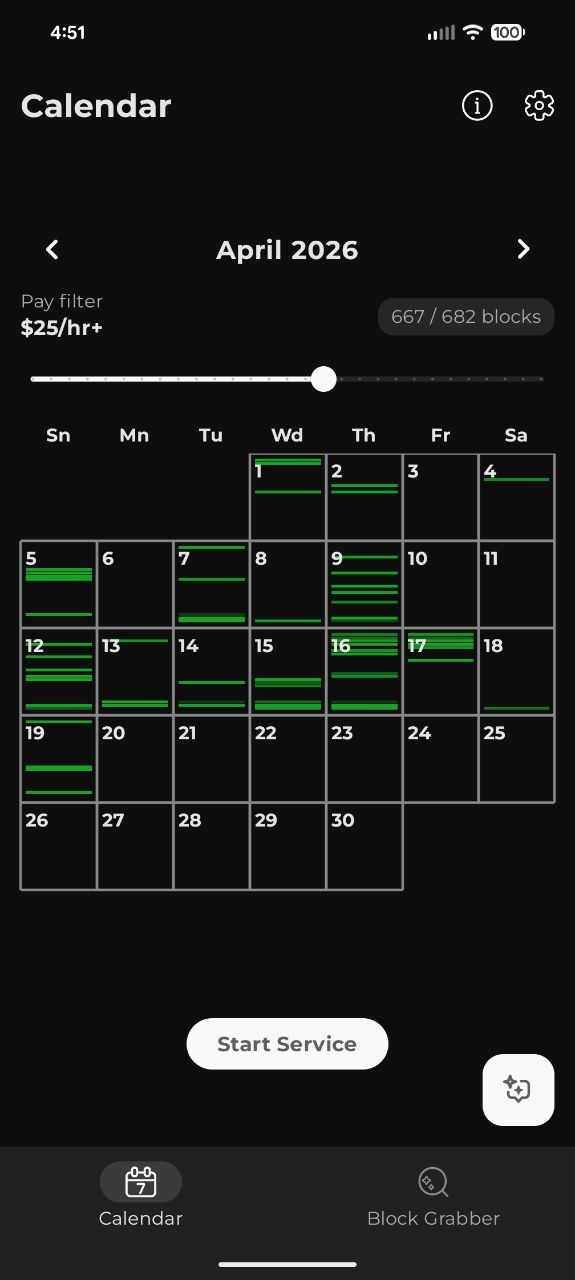
On the Calendar screenshot, each green dash is one tracked offer appearance. Every day square is divided into roughly 24 time slices (hours).

  • Higher dashes = earlier morning hours.
  • Lower dashes = later evening/night hours.
  • More transparent green = lower pay.
  • More solid/strong green = higher pay.

Top pay filter hides offers below your chosen minimum.

Calendar month view with green dashes

Calendar month view with green dashes.

In one glance, Calendar highlights when better-paying blocks usually appear.

Why is my calendar not filling up?
  • Service not running.
  • Play is paused.
  • Amazon Flex is not foreground.
  • Permissions not fully enabled.
  • Pay filter is hiding lower-paid offers.

Once these are fixed, Calendar starts building your trend data right away.

How long until insights become useful?

Early hints start quickly, but stronger confidence comes with more history. Insights readiness is strongest around 20+ tracked blocks.

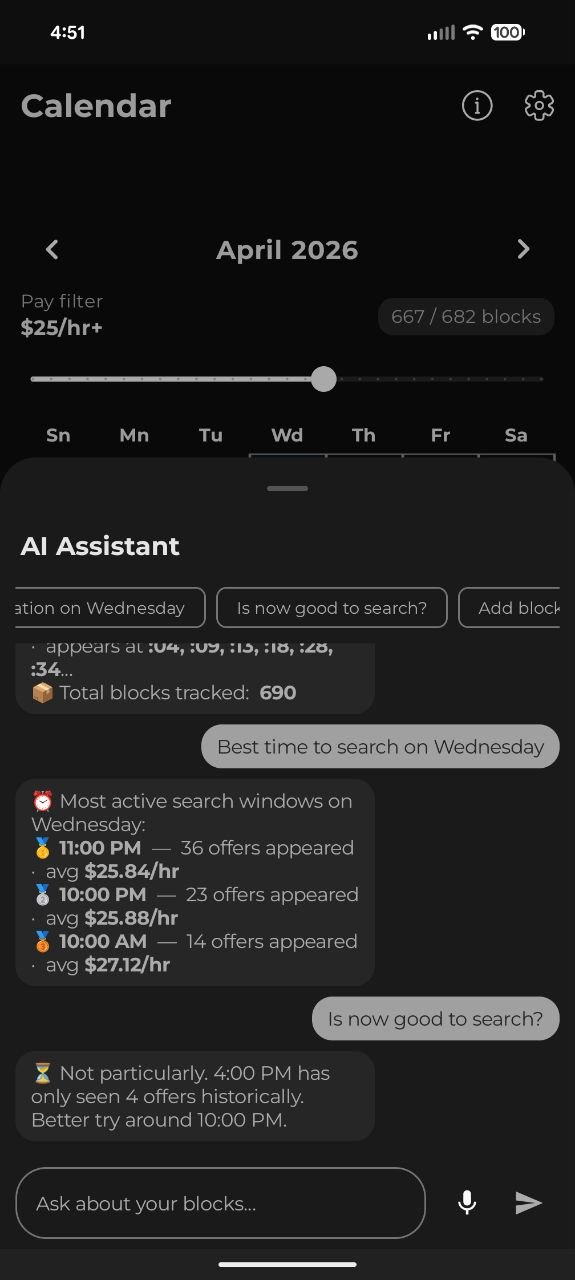
Insights readiness progress and recommendations

Insights screenshot: readiness/progress and recommendations.

Keep tracking and check Insights regularly. The app keeps learning your market for you.

Do blocks appear on repeating minute patterns?
  • Oregon: often around :02, :07, :12, :17, then every 5 minutes.
  • San Diego: often around every 4-5 minutes, sometimes near :04.
  • Washington: often near 5-minute cadence, sometimes near :02.

Use these as examples. Your own history is the source of truth.

We track these minute patterns for you automatically, so just keep an eye on Insights for your best windows.

Block Grabber

Premium Feature
What does Block Grabber do?
  • Uses your filters to target wanted offers.
  • Runs continuous searching to save manual refresh time.
  • Can auto-pause on blocking/error states.
  • Detects CAPTCHA screens but does not solve CAPTCHA for you.
Block Grabber overlay on Amazon Flex

Block Grabber overlay on Amazon Flex. Annotate this image with callouts: (1) Play button to start search, (2) Stop button to stop service, (3) overlay must stay on top of Amazon Flex.

It works like a consistent human refresher, so you get more chances without sitting and tapping all day.

How does Smart Timing work, and why do we need it?

Smart Timing concentrates faster refresh near likely drop minutes and stays calmer outside those minutes.

Right now, this runs in Classic Mode only.

  • Calm mode: slower delay outside hunt minutes.
  • Hunt mode: faster delay during hunt minutes.

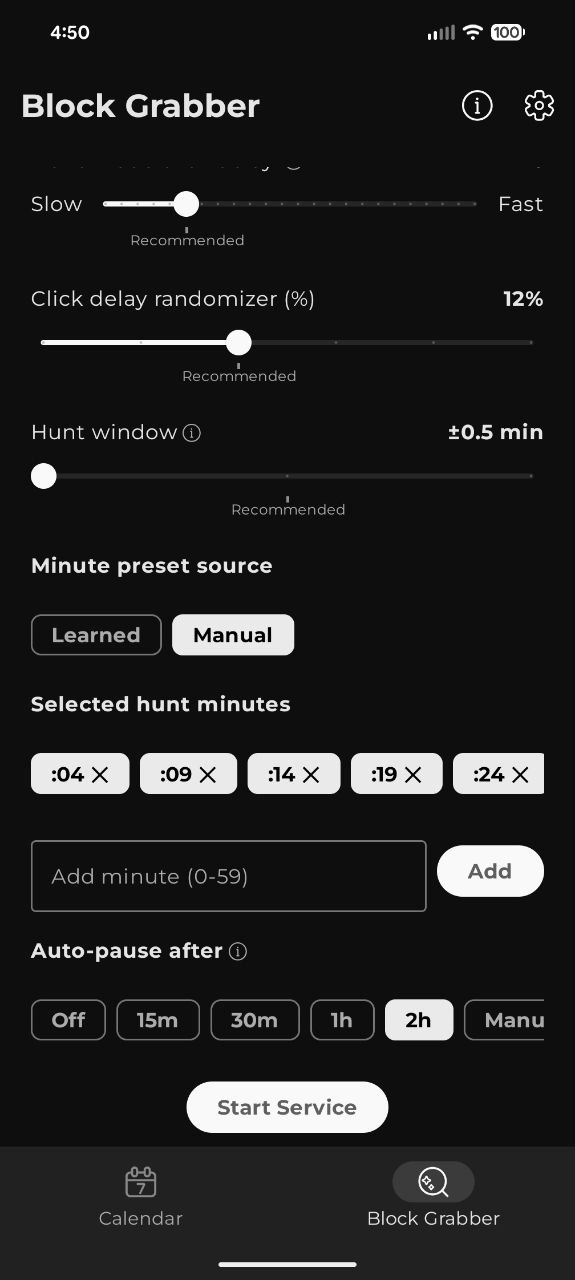
Minute preset sources:

  • Learned: from your saved appearance timing history (recent first, then full-history fallback).
  • Manual: minutes you pick yourself.
Smart Timing screen with minute preset source

Example: Smart Timing with minute preset source.

This helps you focus effort around likely drop moments while reducing unnecessary refreshes in low-value periods.

I see “Block unavailable”. Is Block Grabber broken?

Short answer: no. Usually this is competition timing.

Example: block drops at 5:00:36, you see it at 5:00:38, another driver may already have accepted it.

Block Grabber improves your chances by keeping consistent speed, but final grab success is still real-time competition.

What happens after a block is grabbed?

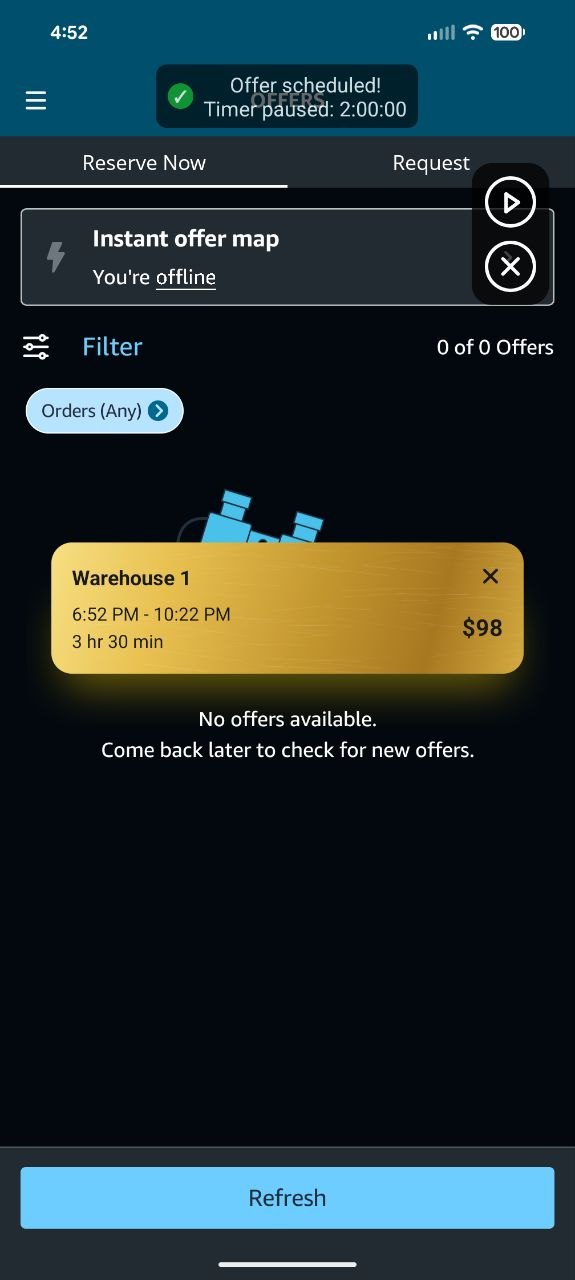
After a successful grab, Block Grabber auto-pauses and sends a notification. A gold confirmation card appears in the center with grab details.

Gold confirmation card after successful grab

Example: gold card shown after successful grab.

This protects your account flow and gives you instant proof of what was successfully grabbed.